
Knowledge Base
Protect your portal login and sign-up forms from bots and automated abuse with Google reCAPTCHA v3. This guide walks you through the complete setup process.
What is Google reCAPTCHA v3?
Invisible bot protection that works behind the scenes, with zero friction for your portal users.
Unlike older CAPTCHA systems that ask users to solve puzzles or click checkboxes, reCAPTCHA v3 runs silently in the background. It monitors user behavior on your page and assigns a score between 0.0 and 1.0. A score close to 1.0 means the visitor is very likely a real human. A score close to 0.0 indicates automated or suspicious activity.
ZPortals uses a score threshold of 0.5 (Google’s recommended default). Any login or sign-up attempt scoring below 0.5 is blocked automatically. Your real users will never see a challenge or be interrupted during their workflow.
Get Your reCAPTCHA v3 Keys from Google
You will need a Site Key and a Secret Key from the Google reCAPTCHA admin console.
- Go to google.com/recaptcha/admin and sign in with your Google account.
- Click the + (plus) button to register a new site.
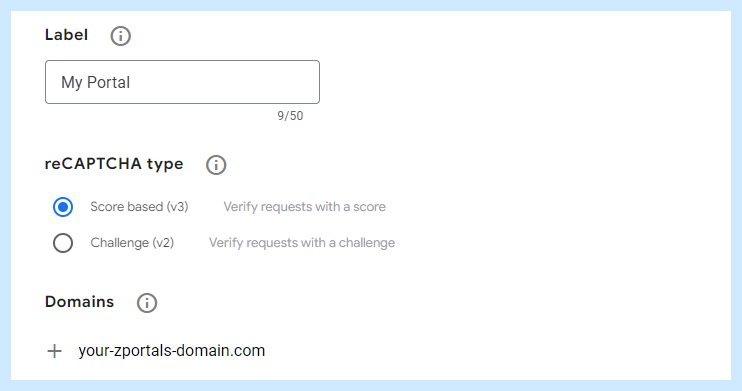
- Enter a label for your site (e.g., “My Client Portal”).
- Under reCAPTCHA type, select Score based (v3). This is critical. Do not select v2.
- In the Domains field, enter the domain where your portal is hosted (e.g.,
portal.yourcompany.com). You can add multiple domains if needed. - Accept the reCAPTCHA Terms of Service and click Submit.
- Google will display your Site Key and Secret Key. Copy both values. You will need them in the next step.
Enable reCAPTCHA in ZPortals
Paste your keys into the ZPortals admin panel and enable the feature.
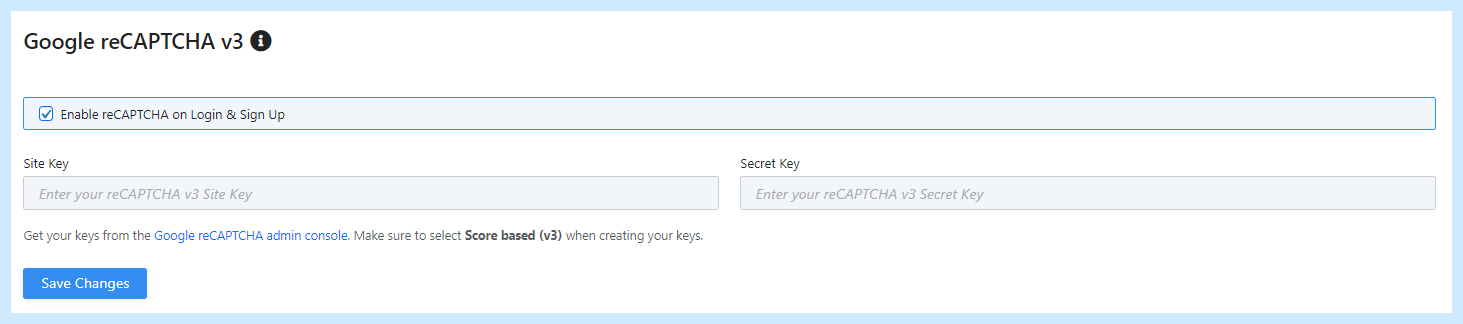
- In your WordPress admin, navigate to Zportals > Portal Setup > User Settings.
- Scroll down to the Google reCAPTCHA v3 section.
- Check the Enable reCAPTCHA on Login & Sign Up checkbox.
- Paste your Site Key into the Site Key field.
- Paste your Secret Key into the Secret Key field.
- Click Save Changes.
Which Forms Are Protected?
reCAPTCHA v3 protects the two most targeted entry points on your portal.
When enabled, reCAPTCHA verification runs on every submission of these forms:
Login Form
Prevents brute-force credential stuffing attacks, where bots try thousands of email and password combinations to break into user accounts.
Sign-Up Form
Blocks automated account creation. Without protection, bots can register hundreds of fake accounts, polluting your Zoho CRM data and consuming resources.
Other portal forms (such as the forgot password request) are lower-risk because they only trigger an email and do not grant access or create accounts.
Understanding the Score Threshold
reCAPTCHA v3 scores every interaction. ZPortals uses this score to decide whether to allow or block the request.
Every time a user submits your login or sign-up form, Google returns a score between 0.0 and 1.0 based on signals like mouse movement, browsing patterns, and interaction timing. ZPortals enforces a threshold of 0.5, which is Google’s recommended default for most websites.
If the score is 0.5 or above, the form submission proceeds normally. If the score is below 0.5, the submission is blocked and the user sees a message asking them to try again. Legitimate users almost always score well above this threshold.
Common Issues and Solutions
If users report problems logging in or signing up after enabling reCAPTCHA, check these common causes.
1. “Security verification failed” error on every attempt
This usually means the keys are incorrect or mismatched. Double-check that you pasted the Site Key and Secret Key into the correct fields (they are not interchangeable). Also verify that your keys are for reCAPTCHA v3, not v2. You can confirm this in the Google reCAPTCHA admin console under your site’s settings.
2. One or both key fields are empty
Both the Site Key and the Secret Key must be filled in for reCAPTCHA to work. If either field is empty, ZPortals will silently skip reCAPTCHA verification and allow all users through. This means your forms are unprotected even though the checkbox is enabled. Check your settings and make sure both fields contain the correct values.
3. The domain is not registered in Google reCAPTCHA
The domain where your portal is hosted must be listed in the “Domains” section of your reCAPTCHA key configuration in Google’s admin console. If your portal is at portal.example.com, that exact domain (or example.com to cover all subdomains) must be included.
4. Server cannot reach Google’s verification API
ZPortals verifies the reCAPTCHA token by making a server-side request to google.com/recaptcha/api/siteverify. If your hosting provider blocks outbound HTTP requests or has a strict firewall, this request may fail. Contact your hosting provider to ensure outbound connections to Google’s API are allowed. As a safety measure, ZPortals allows users through if Google’s API is unreachable, so this issue typically causes a temporary gap in protection rather than a lockout.
5. Users behind corporate networks or VPNs
In rare cases, users on heavily restricted networks may be unable to load the reCAPTCHA script from Google’s servers. When this happens, ZPortals detects that the script did not load and allows the form to submit normally without reCAPTCHA verification. These users will not be locked out, but their requests will not be checked for bot activity. If you notice this pattern for specific users or networks, it typically indicates a firewall or content filter blocking Google’s domains on their end.
6. Where to check error logs
ZPortals logs reCAPTCHA failures with the score and status. Navigate to Zportals > Help & Resources > Error Log in your WordPress admin to review these entries. Each log entry shows whether the failure was due to a low score, an invalid token, or a network issue.
Need Help?
If you run into any issues setting up reCAPTCHA or need assistance with your portal configuration, our support team is here to help.