
May 4th, 2026
Project status updates are one of the most repetitive jobs in any service business. The client asks. You open Zoho Projects. You write the email. You hit send. They ask again next week.
ZPortals v6.3.0 hands that question back to your clients. Their projects, their milestones, their tasks, their bugs, their time logs, all rendered inside the portal they already use for invoices, tickets, and documents. Filtered automatically to each user’s CRM Account or Contact, refreshed live from Zoho, and behind the same login they are used to. No extra Zoho seats. No exports. No screenshots.
This is the deep dive: when the integration makes sense, how to set it up, and what your users actually see once it is live.
Project Visibility Without Zoho Seats
Zoho Projects is built for the people doing the work. The people who care most about that work are usually not on the team.
Project managers, developers, designers, and contractors all need a paid Zoho seat. That is the right model when everyone is a contributor. But clients waiting for a deliverable, partners coordinating a launch, executives sponsoring an initiative, and homeowners tracking a renovation are not contributors. Giving each of them a paid Zoho user just to glance at a milestone is wasteful, hard to manage, and confusing for them, since they get dropped into a tool built for project managers.
The alternatives have been worse. Weekly status emails go stale the moment they are sent. Custom-built status dashboards rot the moment a field changes in Projects. Shared screenshots are out of date by lunchtime.
The new integration gives you a fourth option. Your portal users see only the projects linked to their CRM Account or Contact, presented in clean, branded portal pages that match the rest of your ZPortals experience. They never touch Zoho Projects directly. You never give out a seat. The data stays live because it is coming from the same API your team uses internally.
When This Integration Pays Off
A few scenarios where exposing Zoho Projects through the portal removes the most friction.
Professional Services and Agencies
Web design studios, marketing agencies, branding firms, consulting practices. Clients want to see what you are working on this week, what is on deck, and what is blocking. The portal becomes the answer to “what is the status?” and your account managers stop fielding the same question every Tuesday.
Construction, Property Management, and Renovation
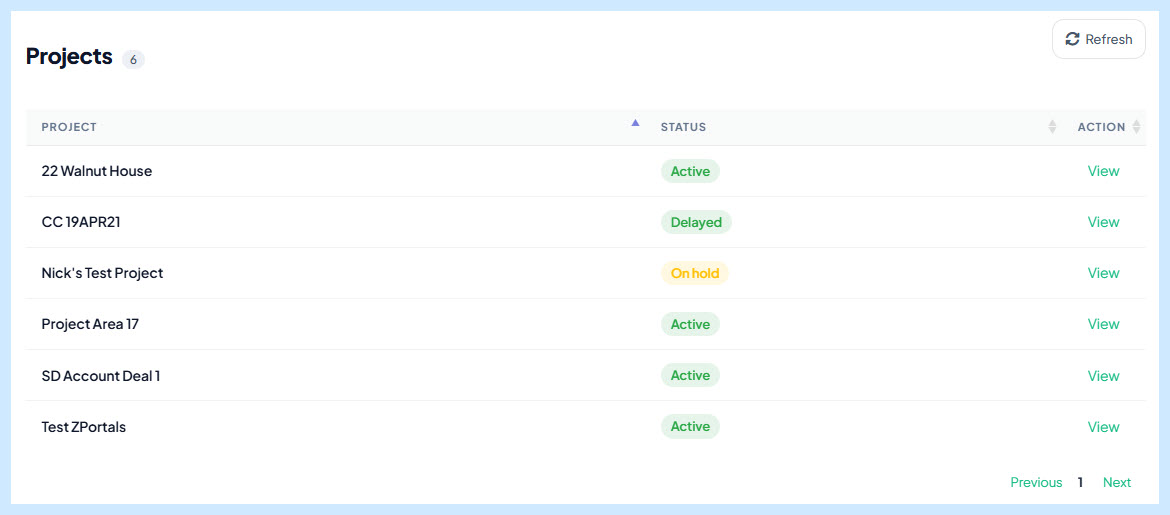
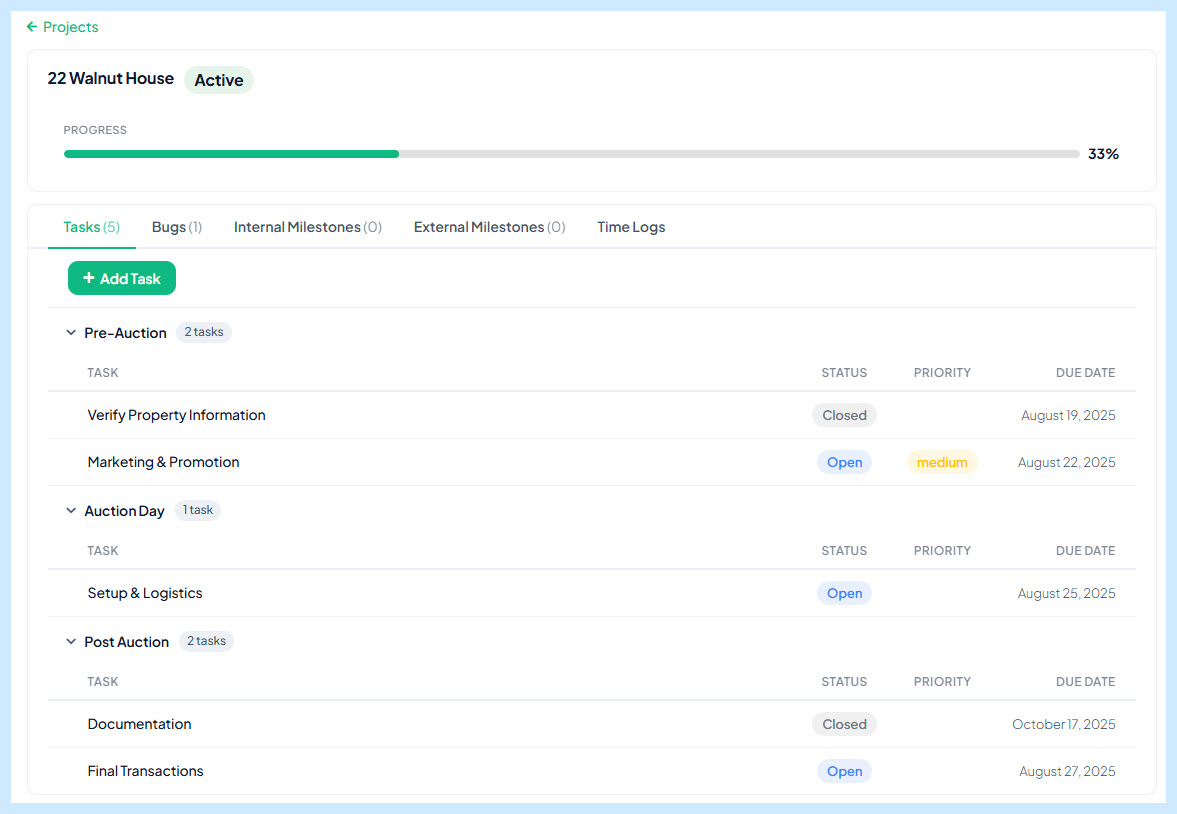
Each property is a project, each phase is a milestone, each trade is a tasklist. Homeowners can see foundation, framing, electrical, and finish work as it happens, with photos uploaded straight to the relevant task. The “22 Walnut House” project becomes a single page they bookmark, not a folder of email attachments.
Software Development and External Contractors
When you are working with offshore developers or specialist contractors who do not justify a Zoho seat, you can still collaborate on tasks and bugs through the portal. Enable Add Task and Report Bug permissions, and they get a structured intake without you forwarding emails into Projects manually. Comments thread back to the same task in Zoho.
Partner Channels and Co-Sell Programs
Joint go-to-market initiatives often live in Projects internally, but partners want their own view. Filter projects by the partner’s CRM Account, expose milestones and time logs, and partners can self-serve on launch readiness without weekly sync calls.
Legal, Accounting, and Professional Advisory
Matters, engagements, and audit cycles map cleanly onto projects and milestones. Clients see deliverables, deadlines, and what they still owe you, all without a paid seat in your practice management tool.
The common thread is that the project work is already happening in Zoho Projects, and the people who need visibility are already in your CRM. The integration just connects them.
The CRM Linking Model
The whole feature hinges on a single concept worth understanding before you set it up.
Each Zoho Projects project needs a custom field that holds the matching CRM Account or Contact. When a portal user logs in, ZPortals reads their CRM record and filters Projects to show only the ones tagged with that record.
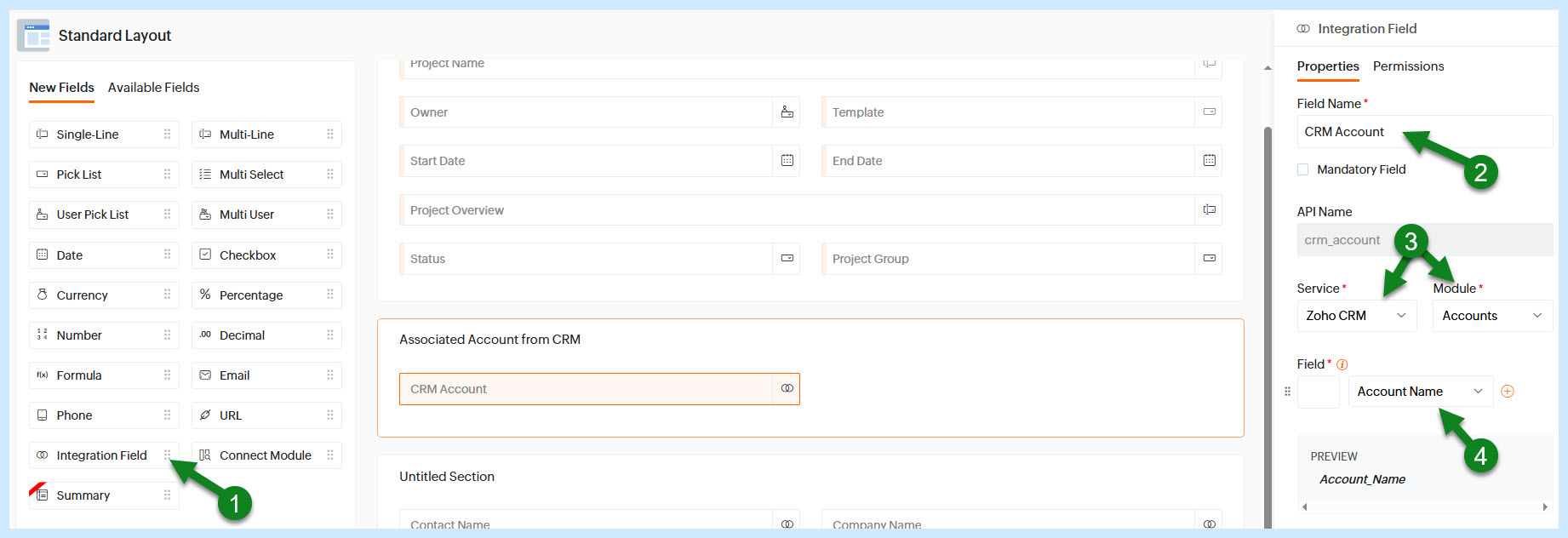
You have two ways to set this up. The polished option is a Zoho Projects Integration Field that pulls directly from Zoho CRM’s Accounts or Contacts module. Once added to your Projects layout, populating the field on a project gives whoever manages it a CRM record picker, and the link stays accurate even if the linked record’s name changes.
The simpler option is a plain single-line custom field, named whatever you like (e.g., “CRM Account ID”). On each project, paste the raw CRM Account ID (something like 1632952000012104002) into it. ZPortals’ matcher accepts either format, so the result is the same. Use this option if you have not set up the Zoho Projects ↔ CRM integration in your Zoho admin, or if you just want the lightest possible setup.
Either way, note the field’s API name (something like company_name or crm_account_id); you will plug it into ZPortals in the next step. You can link by Account or by Contact, depending on whether projects belong to a company or to a specific person. That choice is a single dropdown in the customization panel.
Setup Walkthrough
Five steps, fifteen minutes, mostly clicks.
Step 1: Authorize Zoho Projects
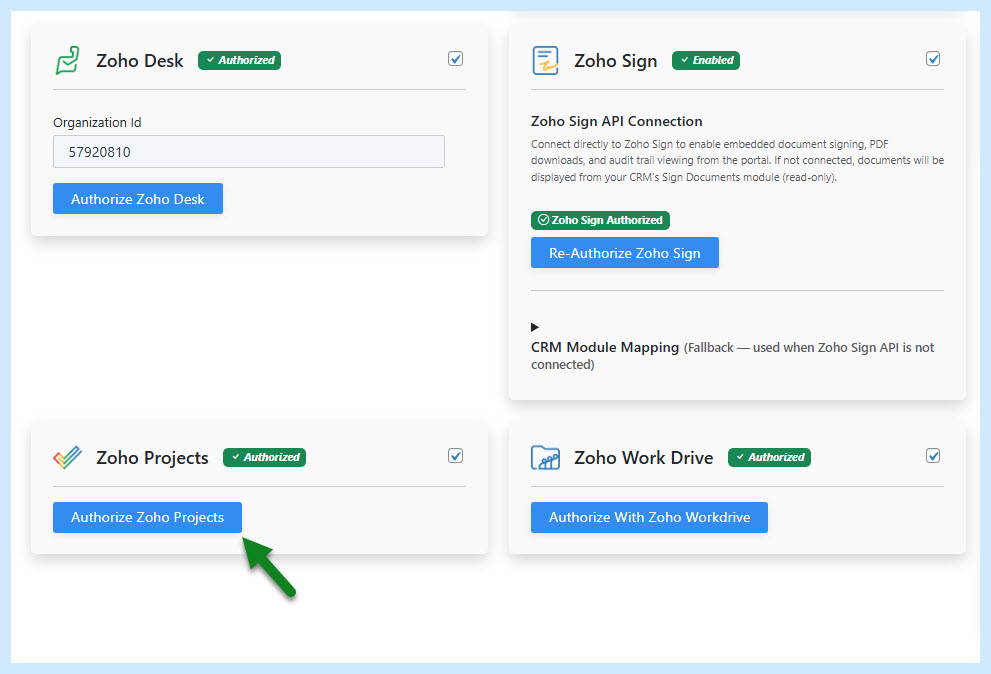
In your WordPress admin, go to ZPortals > Portal Setup > API Settings and find the Zoho Projects panel. Toggle it on, then click “Authorize Zoho Projects”. You will be sent through Zoho’s OAuth flow and returned to ZPortals with a green “Authorized” badge. No portal ID input is needed; OAuth handles it.
If you authorized on an earlier ZPortals version and the Bugs tab is hidden inside the portal, click Authorize again from the same panel. The OAuth scopes are predefined by ZPortals, so a fresh authorization will pick up everything the current version supports.
Step 2: Add the Linking Field to Zoho Projects
Pick whichever option fits your workflow.
Option A: Integration Field (recommended). Inside Zoho Projects, go to Setup > Customization > Layouts > Projects and add an Integration Field. Set the service to Zoho CRM, the module to Accounts (or Contacts), and add the Account Name field. Whoever manages projects will get a CRM record picker on each project. Note the field’s API Name from the field properties; you will need it in the next step.
Option B: Plain single-line text field. Add a regular custom text field on the Projects layout, named whatever you like (e.g., “CRM Account ID”). On each project, paste the matching CRM Account ID into it. Less polished UX, but no Zoho Projects ↔ CRM integration setup required.
Whichever option you pick, populate the field on every project that should appear in the portal, then note its API Name.
Step 3: Configure ZPortals
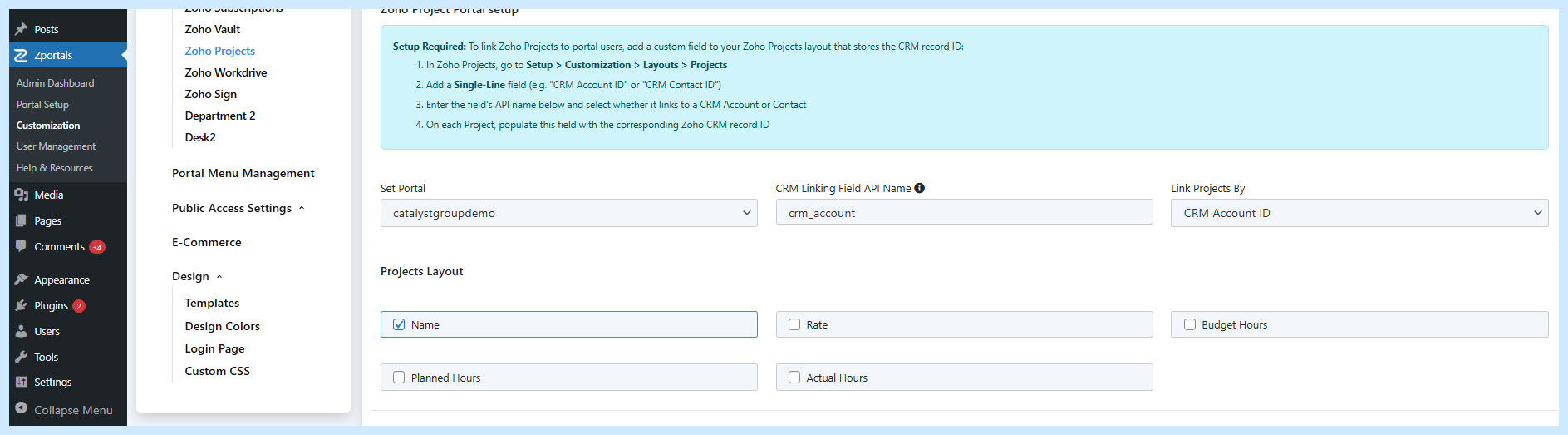
Back in WordPress, go to ZPortals > Customization > Zoho Projects. Click “Sync New Portals” to load your Zoho Projects portals, then pick yours from the “Set Portal” dropdown. Enter the CRM Linking Field API Name from Step 2, and choose whether to link projects by CRM Account ID or Contact ID.
In the same panel you will find the layout options (which fields show on cards) and the Portal User Permissions section. Three permissions, all off by default for safety:
- Allow Add Task. Lets portal users create tasks from the Tasks tab.
- Allow Add Bug. Lets portal users report bugs from the Bugs tab.
- Allow Add Comment. Lets portal users comment on tasks and upload attachments. (If you want attachments to work, your Zoho Projects portal needs upload rules configured in its admin. It is a one-time setting.)
Most read-only client portals leave all three off. Contractor or partner portals turn them all on. Mix and match per your workflow. Check “Show in user portal” and click Update.
Step 4: (Optional) Reorder the Menu
Once Step 3 is saved with “Show in user portal” checked, Projects is automatically appended to the active portal menu. You only need to visit ZPortals > Customization > Portal Menu Management if you want to reorder Projects above other items, group it under a parent menu, or place it inside a section.
Step 5: Enable for User Profiles
Under ZPortals > User Management > Profiles, edit each profile that should have access and check Zoho Projects. When you first toggle the integration on, ZPortals automatically adds the permission to all existing profiles, so this step is mostly relevant when you create new profiles later.
Inside the Portal
The user experience is built around the way people actually think about their projects: start at the list, drill into a project, drill into the work.
The Project List
A clean table with project name, status, progress bar, and an action column. Sorting and search are built in. The list is automatically filtered to the user’s CRM record, so they only see what is theirs. A “Refresh” button sits in the top right; cached project data is held for fifteen minutes, and a click of refresh pulls fresh data from Zoho.
The Project Detail Page
This is where most of the value lives. At the top, an info card shows progress, billing rate, budget, and hours, and only the fields that have actual values. Below that sits a tabbed interface with everything a stakeholder might want.
The Tasks tab uses an accordion grouped by tasklist. Each tasklist expands to show tasks with status, priority, and due date columns. Tasks not assigned to any tasklist show under “Other Tasks”. If Add Task is enabled, an inline form sits at the top.
The Bugs tab is a table with status and priority badges. Add Bug shows a Report Bug form when permitted. Internal and External Milestones live in separate tabs, with visibility controlled separately in the customization panel. That lets you expose external milestones to clients while keeping internal ones internal. The Time Logs tab shows project-wide time entries with billing status badges.
The Task Detail Page
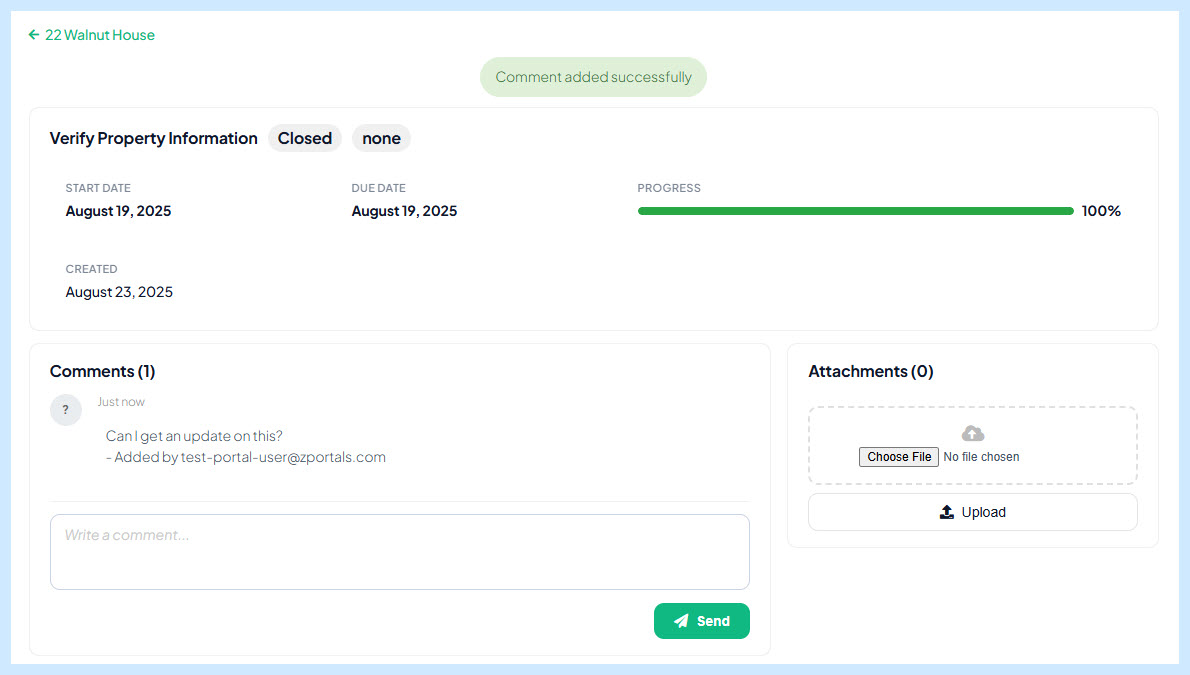
A two-column layout. The main column shows the task header with status and priority, stat cards for start date, due date, progress, assignee, and duration, the full description, a subtasks list, and the comment thread. The sidebar shows attachments and time logs.
Comments display chat-style, with avatar initials, relative timestamps (“2 hours ago”, “Yesterday”, “4 days ago”), and the portal user’s own comments styled distinctly. Attachments show file name and human-readable size, with an upload form when permissions allow. All write actions use a Post-Redirect-Get pattern, so a stray refresh never duplicates a comment or task.
Authorship and Attribution
When a portal user creates a task, reports a bug, or adds a comment, ZPortals appends a small attribution line (“Created by Jane Smith”, “Reported by Jane Smith”) to the description or comment body. This keeps a clean trail in Zoho Projects, since the API authenticates with your admin OAuth token and would otherwise show all portal-created records as authored by you.
How the Caching Keeps the Portal Fast
ZPortals caches Projects data aggressively so portal users get a fast, responsive experience and your Zoho API budget stays comfortable.
Project lists are held for fifteen minutes per portal user, project details for ten minutes, and task details for five minutes. The integration field metadata, which rarely changes, is cached for a full day. After a user’s first visit to the Projects section, subsequent navigation is fast and almost free in terms of API calls. The Refresh button on the list page clears the user’s cache the moment they want fresh data.
The net effect is that even active client portals stay well under Zoho’s per-app API budget during normal use, and the data your users see is never more than a few minutes behind reality.
How to Try It Out
The fastest way to evaluate this for your business is to set it up against a single real project and see what your client sees.
Link one project to a real CRM Account, log in as that account’s portal user, and walk through the list, the detail page, and a task. You will know within a few minutes whether the experience replaces a workflow you currently handle through email or screenshots.
If it does, the rollout is straightforward. Tag the rest of your active projects with the integration field, decide which permissions to grant, and announce it to the right user profiles. Most teams find that the time saved on status updates pays for the Unlimited plan within the first month.
Ready to Connect Your Projects?
The Zoho Projects integration is included with the Unlimited plan in v6.3.0. Update through your WordPress admin panel, then head to API Settings to authorize.