
May 20th, 2026
A customer portal is one of the most attractive targets on a small business website. It is where invoices live, where signed agreements live, where projects, inventory, support history, and personal contact details live. And for years the standard advice for protecting it has been “install a 2FA plugin.” That advice has aged poorly.
ZPortals now ships with native two-factor authentication built directly into the portal login flow. Three verification methods, trusted device management, recovery codes, admin-controlled enforcement, and a Twilio integration for SMS, all configured from the same ZPortals admin you already use. No extra plugins, no parallel login forms, no compatibility patches when WordPress or your theme updates.
This post covers why a native solution matters, the scenarios where 2FA pays for itself the fastest, how the verification flow actually works, and a step-by-step setup walkthrough for both administrators and portal users.
Why Native 2FA Matters
The case for building two-factor authentication into the portal itself, rather than bolting on a generic WordPress plugin.
The standard WordPress 2FA plugins were built for staff accounts. They challenge users at wp-login.php, then assume the rest of the work is done. That model breaks down quickly on a customer portal.
Portal users are not staff. They sign up through your portal pages, log in through your branded forms, and never see wp-login.php. A generic 2FA plugin either fails to challenge them at all (because they bypass the WordPress login screen) or challenges them with an unbranded WordPress prompt that looks nothing like the rest of your site. Either outcome is a problem. The first leaves your portal effectively unprotected. The second confuses the users you are trying to keep safe.
The deeper issue is that bolt-on plugins do not know about your portal’s own authentication paths. ZPortals has several: the main login page, invited-user activation links, ecommerce account creation, password resets, and “remember me” flows. Each one is an opportunity for a 2FA gap. Native 2FA closes those gaps because it lives inside the same code that handles every one of those paths. There is no second login system to keep in sync.
There is also a maintenance argument. A 2FA plugin you stack on top of ZPortals is another moving piece to update, another dependency that can break with a WordPress release, another vendor that can sunset their product. Built-in 2FA ships and updates with ZPortals itself. When the rest of the portal works, 2FA works.
When 2FA Pays Off Fastest
A few scenarios where turning on two-factor authentication for your portal users removes the most risk for the least friction.
Regulated and Compliance-Sensitive Industries
Healthcare, financial services, legal practice, and accounting all have client-data protection requirements that are difficult to satisfy with passwords alone. Patients, claimants, and clients log into your portal to see deeply personal records. A leaked password from an unrelated site can quietly expose all of it. Native 2FA gives you a credible “we require strong authentication” answer for compliance reviews, and the same answer to clients who ask.
Multi-Tenant and Partner Portals
When dozens or hundreds of external users share your portal, the blast radius of a single compromised credential grows. One reused password belonging to a contractor’s project manager can expose another contractor’s data, or worse, expose every client’s data depending on how your portal is structured. Requiring 2FA flips the equation: an attacker now needs the password and a second factor for every account they want to reach, not just one.
Contractor and Freelancer Access
External collaborators are often the highest-risk accounts on a portal. They log in from personal devices, change companies frequently, and rarely follow your IT policies. Optional 2FA does not help here because most of them will not opt in. Required 2FA does, because they enroll the first time they log in. When they leave, revoking their account also revokes their trusted devices and recovery codes.
Executive and Stakeholder Access
Senior stakeholders, board members, and external advisors often have the broadest visibility inside a portal and the worst password habits. They are also the accounts that attackers target first, since they tend to use shared inboxes that show up in breach lists. 2FA is the single highest-impact control you can apply to those accounts, and the trusted-device option means they only do it once per laptop or phone.
Any Portal With Document Storage or Payments
If your portal stores signed contracts, payment methods, or downloadable assets, the cost of a compromised account jumps from “annoying” to “consequential”. 2FA does not eliminate that risk, but it raises the bar high enough that automated credential-stuffing attacks stop working entirely.
The Verification Flow
A single concept worth understanding before you turn it on: after the user types the right password, ZPortals interrupts the login with a second challenge before letting them in.
The challenge picks the strongest method the user has set up. ZPortals supports three.
- Authenticator app (TOTP). The user scans a QR code with Google Authenticator, Authy, 1Password, or any other RFC 6238 client, and from then on the app generates a fresh six-digit code every thirty seconds. Strongest of the three, since no network call is involved.
- SMS via Twilio. A six-digit code is sent to the user’s verified phone number through your own Twilio account. Useful as a fallback or for users who refuse to install an authenticator app.
- Email. A six-digit code is sent to the email on file. The baseline option, available without any extra setup. Email also acts as the default method when a user has not yet enrolled in TOTP or SMS.
A user can have all three configured at once, and the “Try another way” link on the verification form lets them switch between methods mid-login if, say, their phone is dead or their email is slow.
After a successful verification, the user can check a “Remember this device” box. ZPortals then sets a long-lived encrypted cookie tied to that browser, and for the next thirty days (configurable up to ninety) the user is not challenged again on the same device. Up to five trusted devices per user. From the security settings page, the user can revoke all of them with one click if a laptop is lost.
For TOTP users, ZPortals also generates eight one-time recovery codes when 2FA is first enabled. If the user loses their phone, they can sign in with a recovery code, and the system invalidates that code on use. Codes are regeneratable from the security settings page at any time.
Setup Walkthrough
Five minutes for the admin configuration, then each portal user enrolls themselves the next time they log in. No data migration, no plugin install, nothing to back up.
Step 1: Open the 2FA Settings
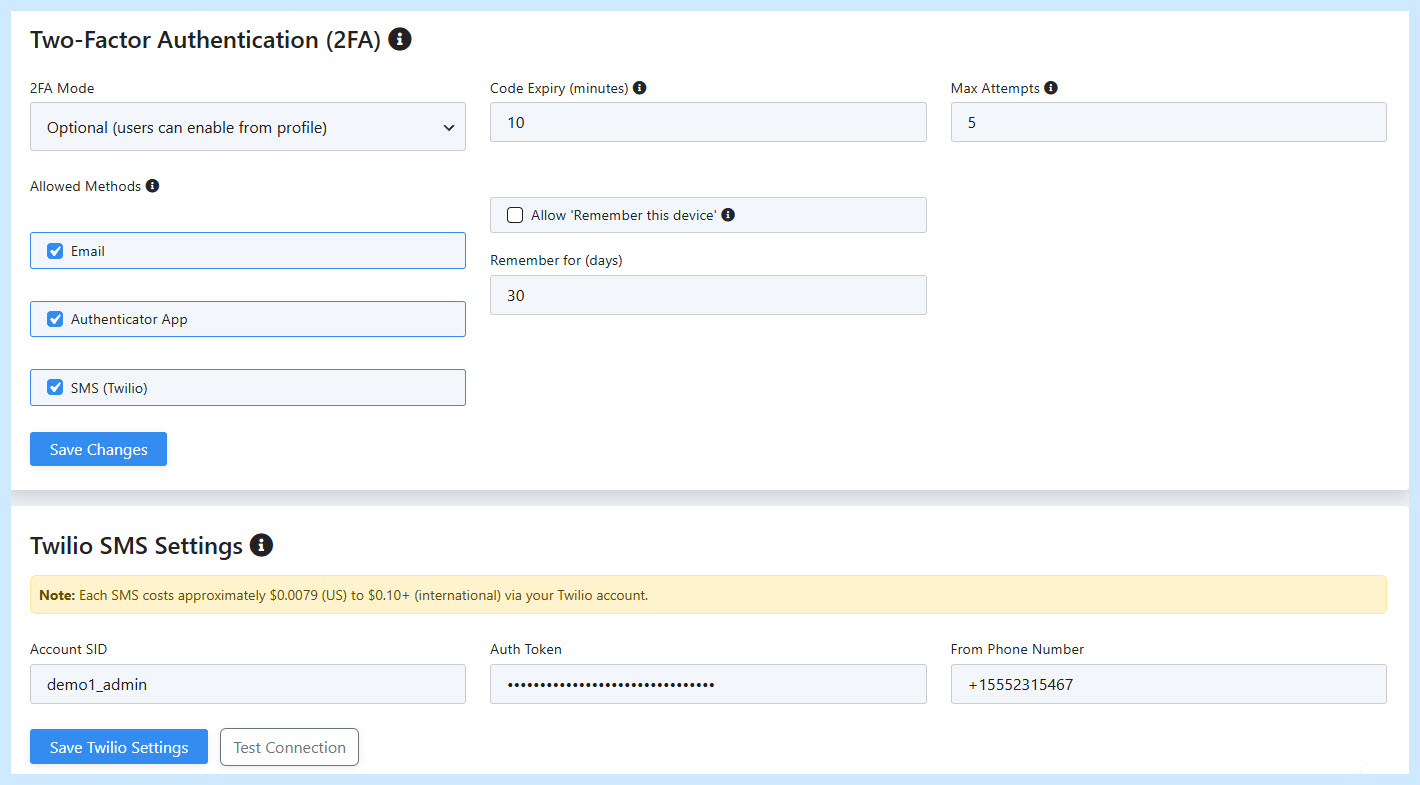
In WordPress, go to ZPortals > Portal Setup > User Settings. Scroll to the Two-Factor Authentication panel.
The panel has one master dropdown that controls the rollout.
- Disabled. 2FA is off entirely. Default.
- Optional. The 2FA card appears on each user’s Change Password page. Users can opt in on their own schedule.
- Required for all users. Users are forced to enroll the next time they log in. They can still pick their preferred method, but they cannot dismiss the prompt.
Most teams pilot with Optional first to let early adopters try it, then flip to Required once they are comfortable.
 That is the whole admin flow. The next time a portal user logs in, the rest happens in their browser.
What Your Users See
The experience your portal users get during enrollment and login is designed to look and feel like the rest of your portal, not like a bolted-on dialog.
The Enrollment Page
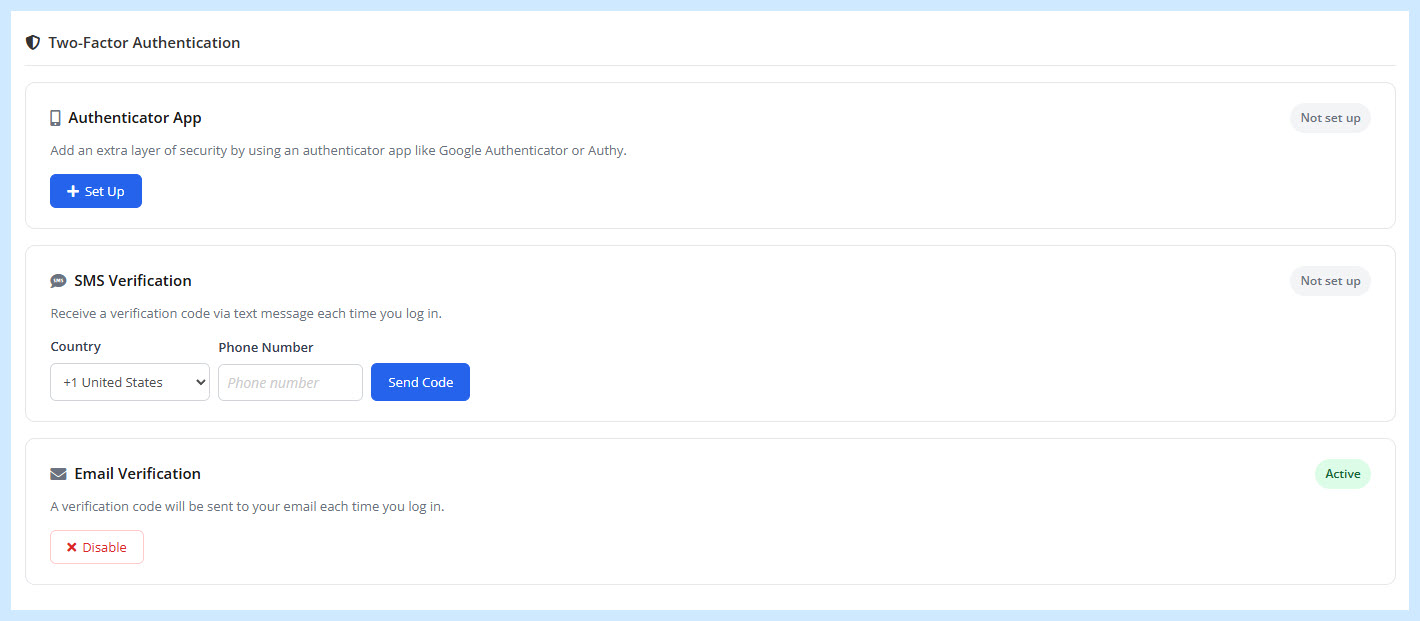
When a user is required to enroll, the first successful login redirects them to their security settings. They see a card for each method you have enabled. Picking Authenticator App reveals a QR code (generated on their own browser, never sent to a server) plus a backup secret in case they prefer manual entry. They scan it, type the six-digit code their app shows, and the method goes live. ZPortals immediately shows them eight recovery codes to download or print.
Picking SMS asks for a country code and phone number, sends a verification code to confirm the number, and then activates that method. Picking Email is a single click since the address is already on file.
Users can enable more than one method, and the security settings page shows each active method with its own “Disable” button. Disabling the only active method also disables 2FA for that user, but only if the admin is in Optional mode. In Required mode, the disable buttons are present only when an alternate method is still configured.
The Login Flow
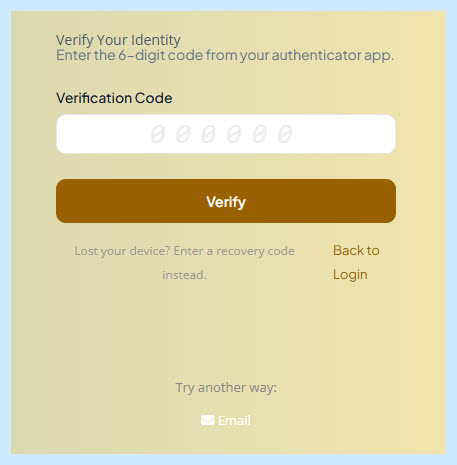
After the user types their password and clicks Sign In, the screen swaps to a verification form. By default it asks for the strongest method the user has enrolled: TOTP first, then SMS, then Email. The form has a “Try another way” link if the user wants to switch mid-flow. If the user has trusted devices and is on one of them, the second challenge is skipped entirely.
The form is styled with the rest of the portal, so it does not feel like a context switch. Error messages are friendly and specific (“That code does not match”, “Codes can only be sent every minute”), and the resend button is disabled with a visible countdown when the rate limit is in effect.
Account Recovery
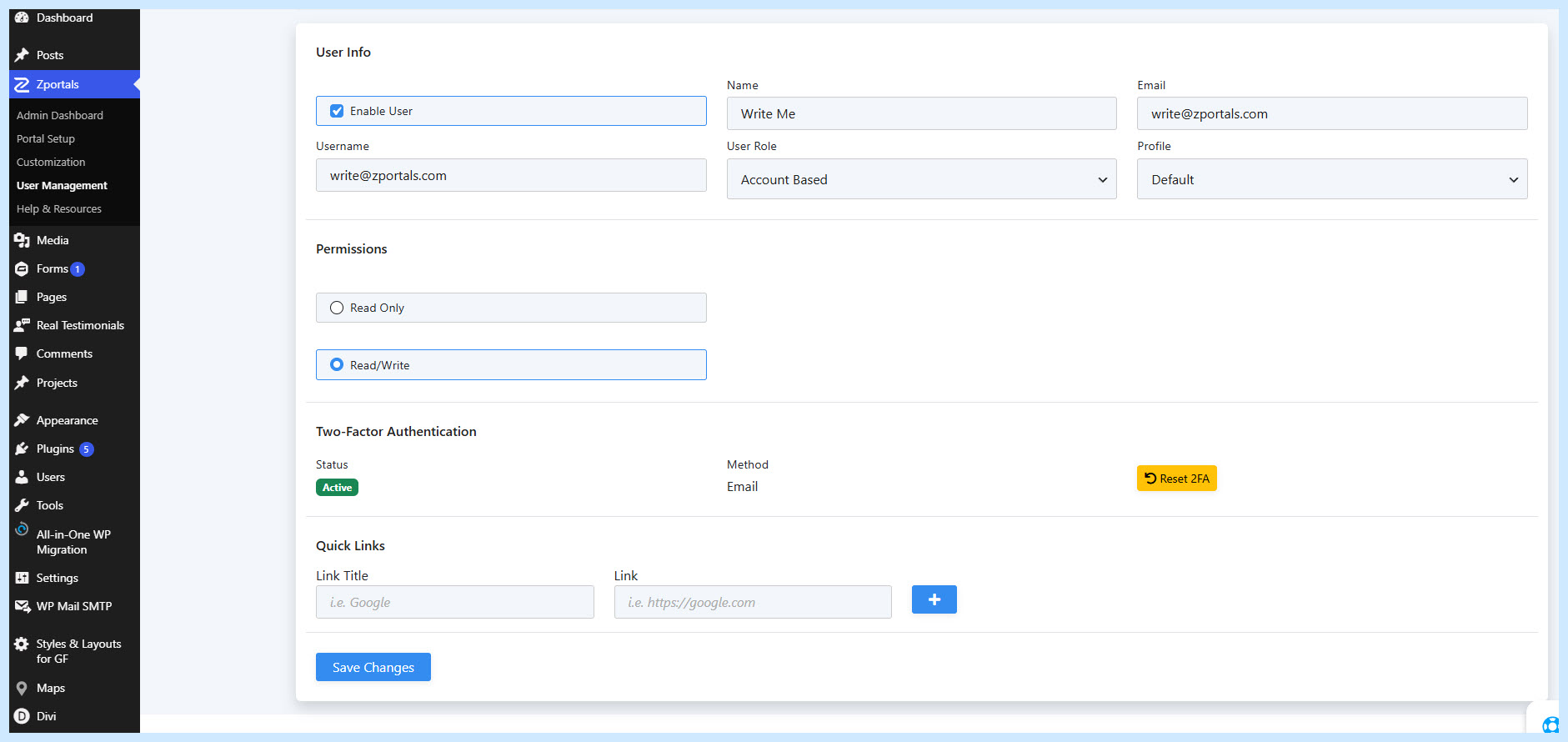
If a user loses their phone, they have two doors back in. They can use a recovery code they saved at enrollment, or contact your team and have an administrator reset their 2FA from the user detail page in ZPortals.
The admin reset is a one-click button. It clears all configured methods, removes recovery codes, revokes trusted devices, and forces the user back through enrollment on their next login. This is the same flow used when an employee leaves a contractor company and their personal device leaves with them.
Plan and Account Safety
How 2FA behaves when your plan changes or when you toggle the feature off.
Two-factor authentication is gated to the Pro and Unlimited plans. If a portal on those plans is later downgraded, all 2FA enforcement automatically pauses, since the gating check runs on every login. Users keep their enrolled methods in the database (so a re-upgrade restores them instantly), but no challenge is presented while the plan does not support the feature. That keeps you from being locked out by a plan change.
The same logic applies in reverse. Turning 2FA off in the admin instantly stops challenging users, but their TOTP secrets, phone numbers, and recovery codes are preserved so a later re-enable does not force everyone to re-enroll.
How to Try It Out
The fastest way to evaluate the feature for your business is to roll it out on a single test account before flipping it on for everyone.
Set the mode to Optional, allow Email and TOTP, then log in as a test user and walk through the enrollment screen. Try logging in, switching methods, using a recovery code, and revoking the trusted device. The whole loop takes a few minutes and gives you the same experience your users will get.
When you are comfortable, switch the mode to Required. Existing users are challenged to enroll on their next login, new users are challenged on their first. Most portals see full coverage within a week of switching, since users naturally cycle through the portal in the normal course of business.
Ready to Turn On Native 2FA?
Two-factor authentication is included with the Pro and Unlimited plans. Update through your WordPress admin panel, then head to Portal Setup > User Settings to enable it.